Send your first Review Request
- Name the business. Add a phone or email customers can see. Save.
- Connect your Google listing on a computer. Paste the link from Read reviews, then Get more reviews, then Copy.
- Add one customer who agreed to hear from you. Set when the job finished. Preview, then send.
If When this Job finished is still Not finished yet, the text waits until the next morning. A send after 8pm waits until morning.
After a real Job, you send one ask. The text contains the Gate, never a raw Review Site link. The Customer taps stars. Every Rating can continue to Google. A Low Rating (1, 2, or 3) can also send a private note. This walk gets you to the first Sent or Scheduled request. You work from Home — the first screen after the Trial email is confirmed, after sign-in, or after an Invitation.
Use this on a new Trial, or after an Invitation while Home still says work is blocked. If that block is money rather than setup, open Why a Review Request did not send.
1. Start the Trial
On RatePulse, open Start Trial. Enter Email and Password, and accept Terms and Privacy Policy. The 14-day Trial includes 25 texts. The 300 starts when the $49 is paid. You will not be charged until the Trial ends unless you start the paid period. GST is not charged. Cancel stops the next charge.
The page says Check your email to start the Trial. The Trial starts when you open that link. The link works for 24 hours. The letter does not contain a password or a setup key.
Opening the link signs you in and opens Home. The confirm page does not show a setup key. An authenticator is optional. From Membership you can turn one on. That screen shows a setup key once, beside a QR code, and ten recovery codes once. Sign-in asks for a 6-digit code, or one unused recovery code, only after that authenticator is on. Password reset is on the sign-in page.
You land on Home as Owner of your first Business. Home is also the first screen after sign-in, or after accepting an Invitation.
2. Home says work is blocked
Home shows zeros and Work is blocked: Set the Business name. Review Requests cannot be sent yet. Daily lists stay readable.
Open Set the Business name. That opens the Business name on Business, not only the top of the page.
3. Business name, contact, and Request Copy
Set Business name — what the Customer sees on the Gate, not the Google listing title.
Set at least one Customer-facing contact: website, phone, or email. Shown on the Gate, not placed in the SMS.
The SMS and email Request Copy boxes are next, on that same Save. Until you Save, they say These words are a draft until Save. The words already include the Business name, the Gate link, and Opt-out. Save still rejects a copy that drops one of those. Home says Save Request Copy until that Save.
Timezone and Quiet Hours stay editable below that lead, on the same Save. They start as Australia/Melbourne and 8:00pm–8:00am. Additional Review Sites and Walk-in Gate stay on the page and are not required. They are not mixed into the name, contact, and Request Copy.
Set Customer-facing contact opens the contact. Save Request Copy opens the two boxes. After Save, Home moves on.
4. Google Connection
Home then says Complete Google Connection. Stay on Business.
One box: Write-review URL. Paste the link from Read reviews, then Get more reviews, then Copy. A long search.google.com write-review link also works. A phone often cannot copy, so do it on a computer. Where to copy the write-review link opens Where to copy the Google listing.
Connect listing. RatePulse reads the listing id from the text after placeid=. You do not type a listing id, and you do not paste a Maps address. A short https://g.page/r/…/review link is followed so that text can be read. RatePulse does not sign in to Google and does not look the business up by name.
Sign-in with Google is not Connection. One listing per Business. A second listing is a second Business.
When Connection is live, the status shows Connected and the saved listing id. The box is hidden. Home drops the banner and shows Send Review Requests.
After connect, the Owner can correct the link on Business at any time, including after a Review Request has been sent and after a Review is stored. Correct listing is there when the Connection is Connected or Dead. It opens the same box, filled with the saved write-review link. Saving reads the listing id again, and the Connection is live afterwards. The Trial does not change, and nothing is charged. A second correction works the same way.
Scheduled, Skipped, and Failed leave it available. Private Feedback does. Using the Walk-in Gate does. A High Rating is not a Review and does not remove it.
Mark Connection dead does not replace the listing. A different listing is still a second Business.
Where to copy the Google listing
Do this on a computer. A phone often does not show Google's copy control.
On the Google Business Profile, select Read reviews, then Get more reviews, then Copy. Copy gives a short link. Paste the whole link into Write-review URL. It starts with https://g.page/r/ and ends with /review.
Example: https://g.page/r/AbCdEf0123/review
A long link also works. Paste the whole link:
https://search.google.com/local/writereview?placeid=ChIJ0123456789
The text after placeid= is the listing id. RatePulse reads it. You do not copy it into its own box.
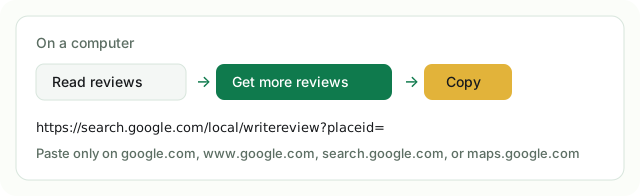
Paste a link only when it is https on google.com, www.google.com, search.google.com, or maps.google.com, or a g.page review link (https://g.page/r/…/review). https://g.page/ on its own is refused. A link on any other host is refused. Do not paste it. Do not paste a Maps address. RatePulse says Paste an https link on google.com, search.google.com, or maps.google.com, or a g.page review link. If the link has no listing id, RatePulse says That review link did not include a listing id. Paste the link from Read reviews, then Get more reviews, then Copy, again. A search.google.com write-review link also works. Reply to the welcome letter and say where you stopped.
Signing in with Google does not connect the listing and does not fill this box.
5. Add one Customer with Consent
Open Customers. You may add people before Google Connection; sending stays blocked until the Business is sendable.
Add Name and an Australian mobile (or email). The same mobile, or the same email when there is no mobile, is already a Customer — the form says so and stays filled. When this Job finished stays optional and starts on Not finished yet. The text does not go immediately. It goes the next allowed morning. Now, or a day and a 12-hour time, uses the Business clock, such as Melbourne time, not the computer clock. The form says when the text can go. Record Consent on SMS as Express if they asked to be contacted. Inferred Consent needs a Job.
Adding a Customer does not create Consent on its own. This walk adds one person. Consent, Import, and Opt-out is a separate article.
6. Preview and Send
When Home is sendable, open Send Review Requests.
Pick that Customer. Open Preview. You should see the Business name, a Gate link, and Opt-out — never a raw Review Site URL.
Send. The result is Sent (handed to SMS or Email) or Scheduled. When the result includes Scheduled, the page says Scheduled is waiting for Smart Window. It has not failed. It also names the soonest send in the Business timezone, for example today at 4:40pm, tomorrow at 9:00am, or 14 October at 9:00am. Smart Window is two hours after the Job, or 09:00 the next morning if that instant is Quiet Hours or the Job has no time. One Send hands at most 100 due Review Requests and leaves the rest Scheduled. This is not a change to when a request is due. Home counts every Review Request still Scheduled, including one waiting into next month, and uses that same soonest phrase. Requests sent stays the Sent count. If nothing is Scheduled, Home does not name a time.
The first 25 SMS in a Trial count toward that Trial, including Reminders, whether or not a card is saved. They do not reset on the 1st. The 300 starts when the $49 is paid. Review Request email is at most 25 for the whole Trial, including Reminders, whether or not a card is saved. On a paid period, email has no allowance.
What the Customer does next
They open the Gate and tap stars. Every Rating can continue to Google. A High Rating (4 or 5) celebrates, then sees Leave your review on Google. A Low Rating (1, 2, or 3) shows the apology, an optional note, and Leave your review on Google before Send feedback. Private Feedback is the note they send. A High Rating is not a Review. Home shows a Review only when a review feed for this listing is already stored. RatePulse does not ask Google for it.
If you are an Operator
You land on Home after accepting an Invitation. You cannot set the Business name, Customer-facing contact, or Google Connection. Ask the Owner. You can add Customers and send once the Business is sendable. You cannot add a card.